
Partner Center
HolidaySG B2B Partner Center
Your complete guide to using the HolidaySG B2B portal. Step-by-step instructions with screenshots.
Welcome to HolidaySG
HolidaySG is Singapore's leading travel activities marketplace. As a B2B partner, you get access to 9,000+ attractions and experiences across Asia at exclusive agent rates.
Your Dashboard
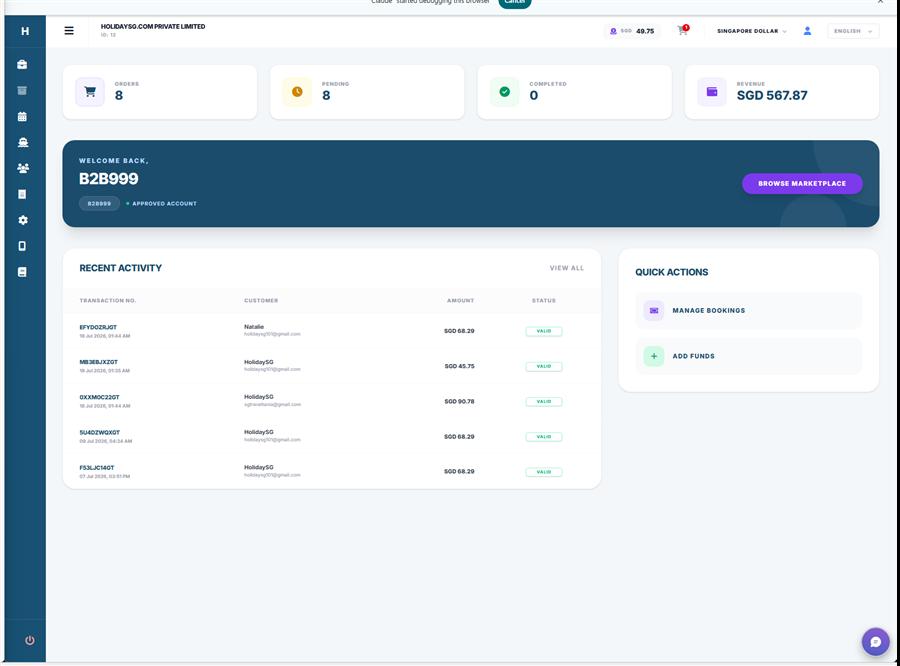
After logging in, you'll land on your dashboard. It shows your orders, revenue, recent activity, and quick action buttons.
Account Setup
Register Your Account
Visit the B2B registration page and fill in your company details: company name, email, phone number, and headquarters location. Your account will be reviewed by our team.
Complete Your Company Profile
Go to Settings in the sidebar to update your reseller information, billing details, and user profile. This information appears on invoices and booking records.
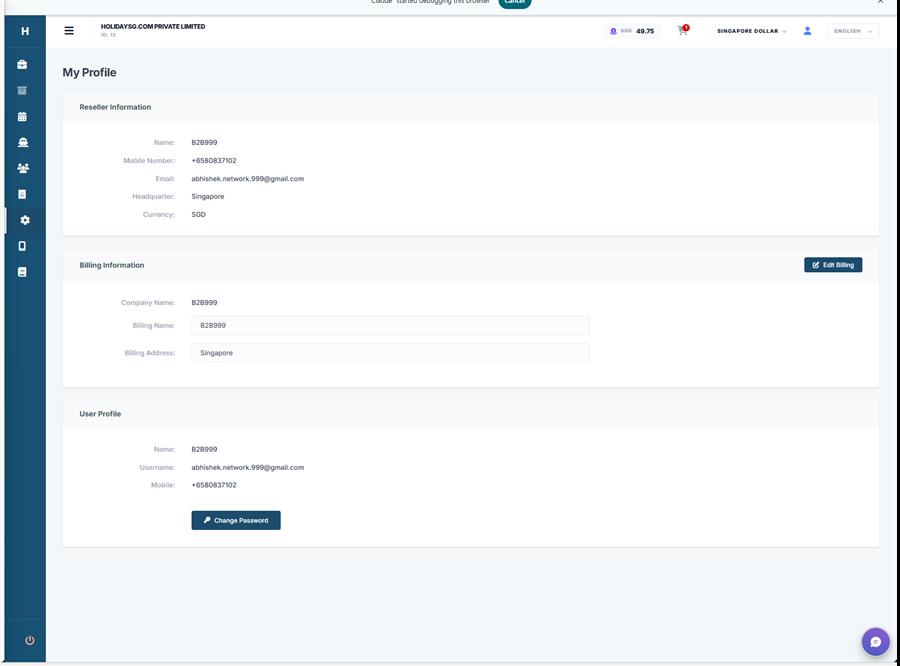
Sections on the Profile page:
- Reseller Information — Your company name, mobile number, email, headquarters, currency
- Billing Information — Company name, billing name, billing address (click "Edit Billing" to update)
- User Profile — Your personal name, username (email), mobile, and the "Change Password" button
Fund Your Wallet
Before making bookings, top up your wallet via bank transfer. Your wallet balance is used for all bookings. See the Wallet Top-Up section for the full step-by-step process.
Your First Booking (Quick Start)
Finding Products
Step 1: Open the Marketplace
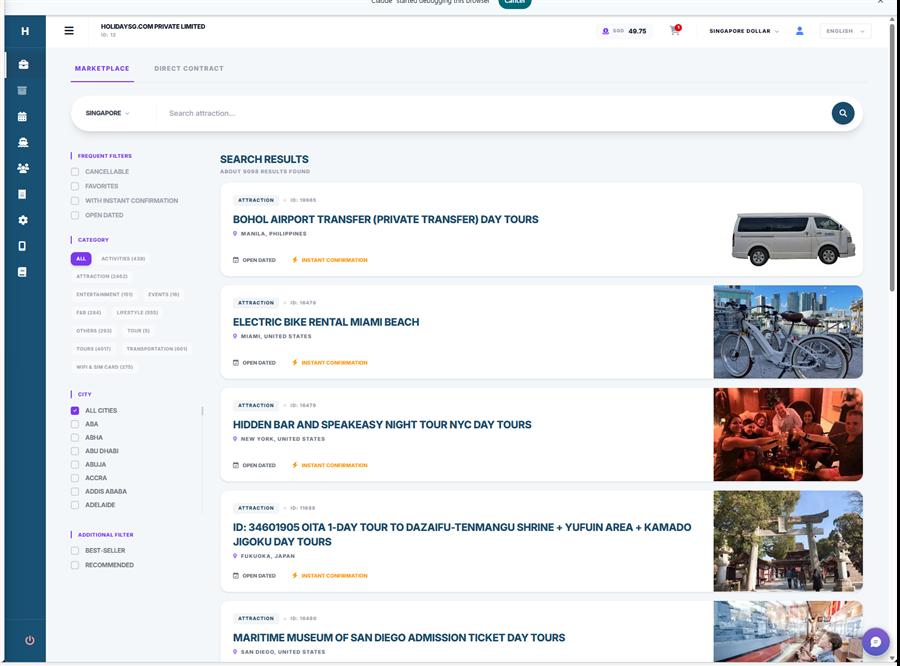
Click "Products" (shopping bag icon) in the left sidebar. You'll see the Marketplace with a search bar at the top and filter options on the left side.
Step 2: Search for a Product
Type the product name or keyword in the search bar. For example, type "singapore zoo" and click the search button or press Enter.
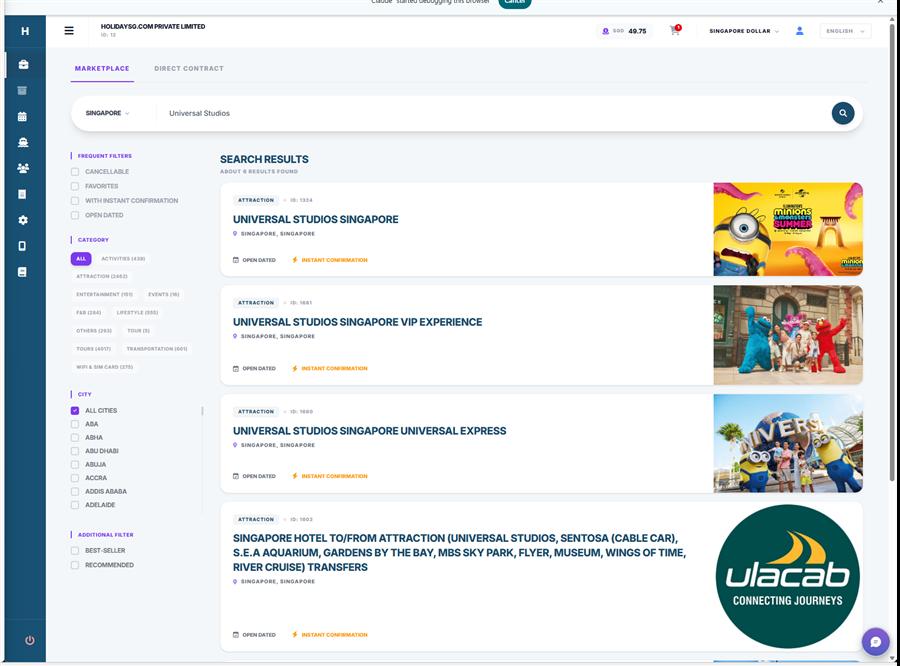
- By attraction name: "singapore zoo", "universal studios", "gardens by the bay"
- By city: Select the city from the City filter on the left sidebar
- By category: Click category tags like ATTRACTION, TOURS, ACTIVITIES, F&B, etc.
- By type: Use Frequent Filters — Cancellable, With Instant Confirmation, Open Dated
Understanding Filters
Frequent Filters
Cancellable, Favorites, Instant Confirmation, Open Dated
Category
Attraction, Activities, Entertainment, Events, F&B, Lifestyle, Tours, Transportation, WiFi & SIM Card
City
Filter products by specific city within the selected country
Additional Filters
Best-Seller, Recommended — curated selections
Understanding Product Tags
Understanding Product Details
Step 3: View Product Page
Click on any product from the search results to open its detail page. Here you'll find everything you need to sell this product to your customers.
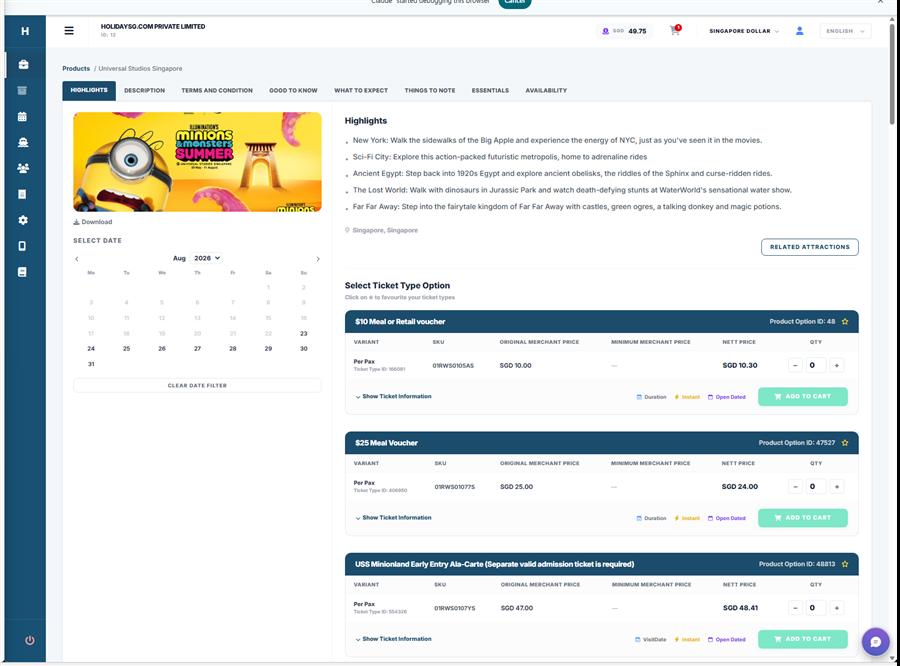
What Each Section Means
Product Name & Location
The official attraction/tour name and its city/country. Use this when communicating with customers.
Description & Highlights
What the product offers, key highlights, and what's included. Share this with customers to sell the experience.
Ticket Types & Pricing
Different ticket options (Adult, Child, Family, etc.) with your B2B agent price. This is your cost — set your own selling price above this.
Inclusions & Exclusions
What's included in the ticket and what's not. Important for setting customer expectations.
Redemption Instructions
How and where to use the voucher — show QR code at entrance, exchange at counter, meeting point, etc.
Cancellation Policy
Whether the booking is refundable, the cancellation window, and any fees. Non-refundable bookings cannot be cancelled.
Validity & Opening Hours
When the ticket is valid and the attraction's operating hours. Some tickets are open-dated (no specific visit date required).
Child & Infant Policy
Age ranges for child/infant tickets. Some attractions offer free entry for infants under a certain age.
Pricing & Rates
How B2B Pricing Works
Your B2B price = Your cost. You set your own selling price to customers.
The price shown on the product page is your net agent rate. This is what gets deducted from your wallet when you book. You can sell to your customers at any price above this — the difference is your profit/commission.
Example Pricing Calculation
| Item | Amount |
|---|---|
| Your B2B price (cost) | SGD 30.00 |
| Your selling price to customer | SGD 38.00 |
| Your profit per ticket | SGD 8.00 |
Important Notes on Pricing
- All prices are in Singapore Dollars (SGD) unless you've changed your currency preference
- Prices may vary by date (dynamic pricing) — always check the price for the specific travel date
- Some products have promotional pricing for limited periods
- Prices can change without notice — confirm the price at the time of booking
How to Book
Booking Process (Step by Step)
Search & Select Product
Find the product in the Marketplace. Click on it to open the detail page.
Choose Travel Date
Select the date your customer wants to visit. Availability is shown in real-time.
Select Ticket Type & Quantity
Choose Adult/Child/Family tickets and the number of each. Prices update automatically.
Enter Traveller Details
Some products require passport name, nationality, date of birth, or gender for each traveller.
Confirm & Pay
Review the booking summary. The total amount is deducted from your wallet instantly.
Receive Confirmation & Voucher
For instant-confirmation products, you get the voucher immediately. For request-based, wait for supplier confirmation.
Types of Bookings
Individual Booking
Single traveller — 1 ticket type, 1 quantity
Family / Group Booking
Multiple travellers — mix of Adult + Child tickets
Same-Day Booking
Book for today — availability is real-time
Future Booking
Book in advance — up to 90 days ahead (varies by product)
Before Booking — Check These:
- Your wallet has sufficient balance for the total amount
- The travel date has availability
- You have all traveller details ready (passport name, nationality, DOB if required)
- You've confirmed the cancellation policy with your customer
Booking Status & History
Viewing Your Bookings
Click "Bookings" in the sidebar to see all your booking records. Each booking shows the transaction ID, product name, customer details, date, amount, and current status.
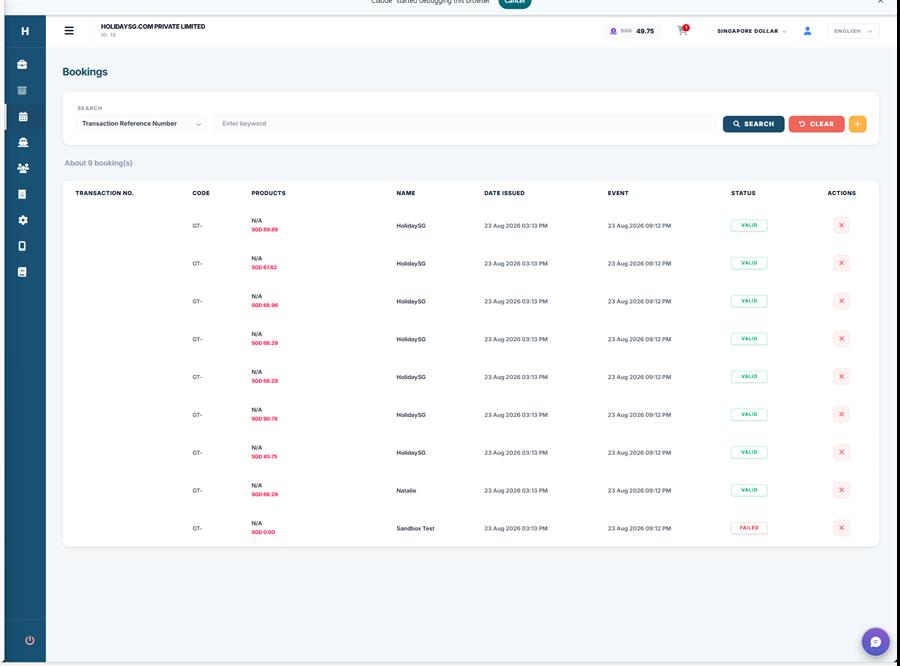
Booking Statuses Explained
Voucher Guide
Where to Find Vouchers
Once a booking is Confirmed, go to Bookings, find the booking, and click on it. You'll see a download link for the voucher (PDF or e-ticket).
What's on a Voucher
Tips for Vouchers
- Mobile voucher — Most attractions accept the voucher on a phone screen (no printing needed)
- Printed voucher — Some attractions require a printed copy. Check the product's requirements
- ID required — Some products require the traveller to show a matching photo ID at entry
- Email to customer — Download the voucher PDF and email/WhatsApp it to your customer
Cancellations & Amendments
Cancellable Products
Can be cancelled before the cancellation deadline (usually 24-48 hours before visit date). Full refund to wallet.
Non-Refundable Products
Cannot be cancelled or refunded once confirmed. Make sure your customer is certain before booking.
Common Scenarios
Customer wants to change travel date
Cancel the current booking (if cancellable) and rebook with the new date.
Customer wants to change passenger name
Contact support at b2b@holidaysg.com — name changes may be possible depending on the supplier.
Supplier rejected the booking
Wallet is refunded automatically. You'll be notified by email.
Attraction is closed / force majeure
Contact support. Refunds are handled case-by-case with the supplier.
Customer no-show
No refund for no-shows. The voucher expires as per the booking date/validity.
Wallet Top-Up (Step by Step)
The Topup Page
Click "Topup" (mobile icon) in the sidebar. You'll see your current balance and the top-up form.
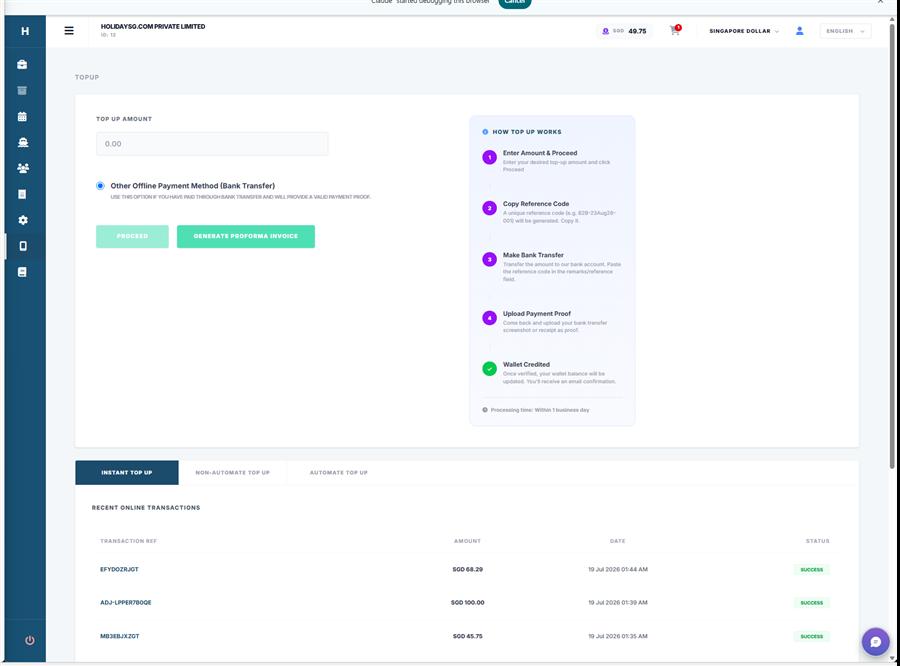
Top-Up Process
Enter Amount & Click "Proceed"
Enter the amount you want to top up (in SGD). Click the "Proceed" button.
Copy the Reference Code
A unique reference code (e.g., B2B-23AUG26-001) is generated. Click "Copy Code".
Make the Bank Transfer
Transfer the exact amount to our bank account. Paste the reference code into the transfer description / remarks field.
Upload Payment Proof
Click "Next — Upload Proof". Select your bank, upload a screenshot of your transfer, and submit.
Wallet Credited
Once verified, your wallet is credited. You can start booking immediately.
Transaction History
Viewing Transactions
Click "Wallet" in the sidebar to see your complete transaction history. Every credit (top-up, refund) and debit (booking payment) is recorded here with the date, amount, description, and running balance.
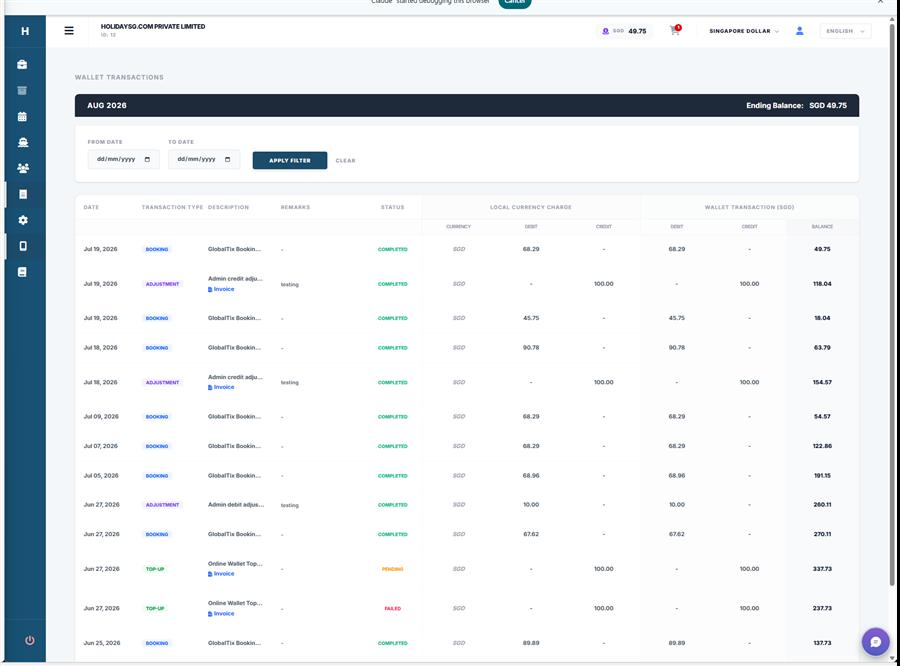
Transaction types you'll see:
- Credit — Wallet top-up, booking refund, promotional credit
- Debit — Booking payment (deducted when you confirm a booking)
Invoices & Proforma
Proforma Invoice
On the Topup page, click "Generate Proforma Invoice" after entering the amount. This gives you a downloadable PDF for your company accounts or pre-payment documentation. It does NOT initiate a transfer.
Booking Invoices
Each confirmed booking generates a receipt/invoice that can be downloaded from the booking detail page.
Sub-Agents & Staff Management
Managing Your Team
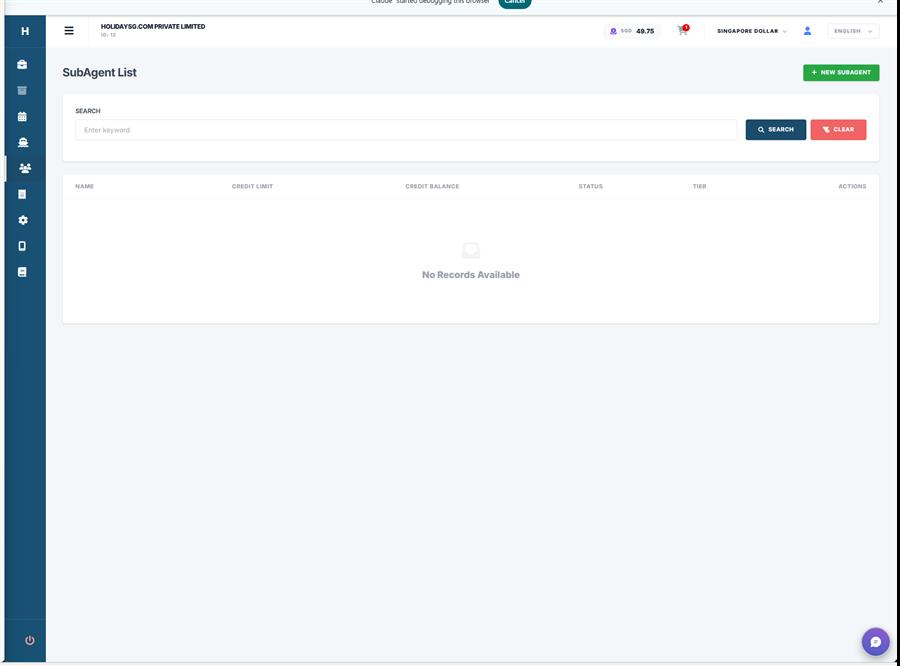
Click "Sub-Agents" in the sidebar to manage team members who can book using your account. You can add new sub-agents, set their permissions, and track their activity.
How to Add a Sub-Agent
Click the "Add Sub-Agent" or "+" button on the Sub-Agents page
Fill in their name, email, phone number, and set a password
Set their commission/discount percentage if applicable
Save — the sub-agent can now log in and make bookings using your shared wallet
Password & Security
How to Change Your Password
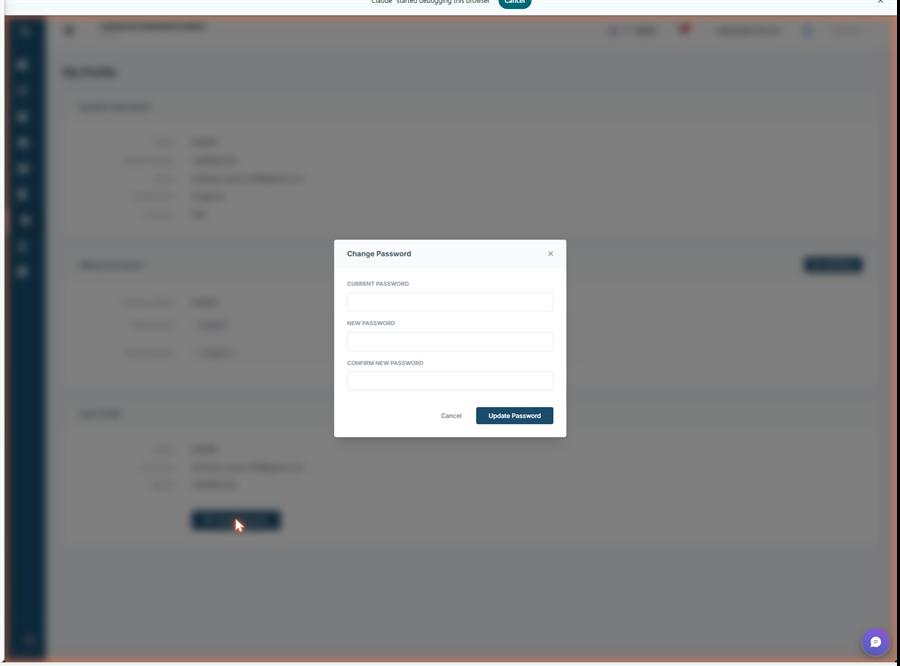
Go to Settings in the sidebar, scroll down to the "User Profile" section, and click the "Change Password" button.
Troubleshooting: Booking Problems
"What do I do if..."
Request-based bookings can take up to 24-48 hours for supplier confirmation. If it's been longer, contact support with your booking reference.
Check your Bookings page — the voucher download link appears once the status is "Confirmed/Valid". If confirmed but no voucher, contact support.
Contact support immediately at b2b@holidaysg.com with the booking reference and correct name. Name changes depend on the supplier.
If the booking is cancellable, cancel it and rebook with the correct date. If non-refundable, contact support.
Ensure the voucher QR code is clearly visible. Check if the voucher date matches the visit date. Contact support if the attraction rejects it.
Contact support immediately. Refunds for closures are handled case-by-case with the supplier.
The amount is automatically refunded to your wallet within 24 hours. Check your transaction history. If not refunded, contact support.
Cancel the duplicate booking if it's cancellable. For non-refundable duplicates, contact support.
No-shows are not eligible for refunds. The voucher expires as per the booking validity.
Troubleshooting: Payment Problems
Top-ups are verified manually or via automated bank matching. Allow up to 1 business day. Check if your reference code was included in the transfer remarks.
Contact support at b2b@holidaysg.com with your transfer receipt/screenshot. We can manually match the payment, but it may take longer.
Top up your wallet first. You can check your current balance on the Wallet page or in the top navigation bar.
Check your Bookings page — the booking may be in "Pending" status. If no booking exists, check your wallet transactions. Failed bookings are auto-refunded within 24 hours.
Refunds are credited back to your wallet balance (not to your bank account). Check your wallet transaction history for the refund credit.
Contact support to request a wallet withdrawal. Withdrawals are processed on a case-by-case basis.
Troubleshooting: Voucher Problems
Try increasing screen brightness. If still not working, show the booking reference number to the attraction staff. As a last resort, contact support.
Contact support immediately with the booking reference. Do NOT attempt to use a voucher with incorrect details.
Try a different browser. Clear your browser cache. If the download link is missing, check that the booking status is "Confirmed".
Contact support immediately. We will liaise with the supplier to resolve the issue while your customer is at the attraction.
Expired vouchers cannot be used. For open-dated tickets, check the validity period. Contact support if you believe the expiry is an error.
Partner Terms
Booking Terms
All bookings are subject to availability and supplier confirmation. Prices are final at the time of booking.
Payment Terms
Wallet-based prepayment. Bookings are deducted instantly. Top-ups processed within 1 business day.
Reselling Rules
Partners may resell products at their own markup. Product content and images must not be altered or misrepresented.
Customer Data
Partners are responsible for obtaining customer consent before sharing personal data (names, passport details) for bookings.
Dispute Handling
All disputes should be reported to support within 72 hours of the incident. We mediate between partners and suppliers.
Cancellation Policy
Cancellation policies vary by product and supplier. Always check the product's cancellation policy before booking.
| Type | Policy | Refund |
|---|---|---|
| Free Cancellation | Cancel before deadline (usually 24-48h before visit) | Full refund to wallet |
| Partial Refund | Cancel within certain window | Partial amount returned |
| Non-Refundable | Cannot be cancelled after confirmation | No refund |
| Supplier Rejection | Supplier cannot fulfill the booking | Full automatic refund |
Need Help?
Our support team is available to assist you with any questions about the portal, bookings, payments, or products.