
Getting Started: Your First Login
After your application is approved, you'll receive login credentials for the B2B portal at holidaysg.com/b2b. Log in and you'll land on your dashboard showing:
- Your current order count and status breakdown
- Wallet balance
- Recent booking activity
- Quick action buttons for common tasks
Before making your first booking, you'll need to fund your wallet. Let's start there.
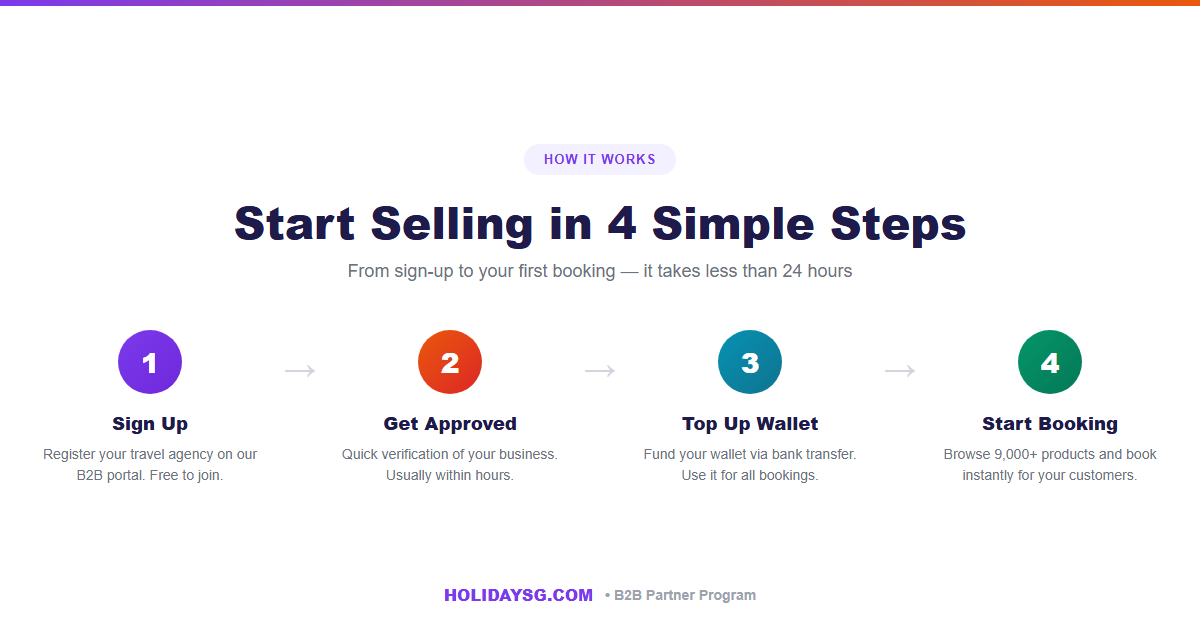
Step 1: Fund Your Wallet
The wallet system is how all B2B bookings are paid. Here's how to top up:
- Navigate to Wallet Top-Up from the sidebar
- Enter the amount you'd like to add (in SGD)
- You'll receive bank transfer details — make the transfer from your business account
- Once we receive your payment, your wallet is credited (usually within a few hours on business days)
Pro tip: Keep your wallet topped up to avoid delays when customers need instant bookings. There's no minimum or maximum deposit amount.
Step 2: Search for Products
Navigate to Products in the sidebar to access the full marketplace. You can find products in several ways:
- Search bar — Type a product name, attraction, or destination (e.g., "Universal Studios", "Bali rafting")
- Country filter — Browse by destination country
- Category filter — Filter by product type (Theme Parks, Tours, Transport, etc.)
- Browse — Scroll through the full catalog organized by popularity
Each product card shows the product name, location, a thumbnail image, and the agent price — so you can quickly assess options for your customers.
Step 3: Check Product Details
Click any product to see its full details page, including:
- Description — What the experience includes
- Ticket Options — Different variants (Adult, Child, Family, etc.) with individual pricing
- Availability Calendar — Check available dates before committing
- Important Information — Redemption instructions, restrictions, what to bring
- Cancellation Policy — Whether the booking is refundable and the cut-off time
Review all details carefully — especially the cancellation policy and any traveller information requirements (like passport names or dates of birth).
Step 4: Make a Booking
Ready to book? Here's the process:
- Select the ticket type and quantity
- Choose the visit date from the availability calendar
- Fill in traveller details (name, and any required fields like passport info)
- Review the total — this will be deducted from your wallet
- Confirm the booking
Most bookings are confirmed instantly. You'll see the status change to Confirmed and an e-voucher will be generated immediately.
Step 5: Download and Share the Voucher
Once a booking is confirmed:
- Go to Bookings in the sidebar
- Find your booking (use the search or filter by date/status)
- Click the booking to view details
- Download the voucher PDF — it contains a QR code that the attraction will scan for entry
- Share the voucher with your customer via email, WhatsApp, or print
Understanding Booking Statuses
Your bookings can have these statuses:
- Pending — Booking sent to supplier, awaiting confirmation (normal for request-based products)
- Confirmed / Valid — Booking confirmed, voucher is ready to download and share
- Completed — Visit date has passed, voucher has been used or expired
- Cancelled — Booking was cancelled, refund (if applicable) returned to wallet
- Failed — Booking could not be processed, wallet amount refunded automatically
Managing Your Team
If you have staff or sub-agents who need portal access:
- Go to Sub-Agents & Staff in the sidebar
- Click Add Sub-Agent
- Enter their details and set their access level
- They'll receive their own login credentials
All bookings made by sub-agents are tracked under your account, and their transactions are visible in your dashboard.
Checking Your Finances
Stay on top of your money:
- Wallet Balance — Always visible in the top bar and on the dashboard
- Transaction History — Full ledger of all wallet credits (top-ups) and debits (bookings)
- Invoices — Download transaction records for your accounting
Need Help?
If you run into any issues — booking problems, payment questions, or technical difficulties — our B2B support team is here to help:
- Email: help@holidaysg.com
- Portal: Use the chat widget in the bottom-right corner of the portal
For a visual walkthrough with screenshots of every feature, visit our interactive Partner Center Guide.
Things to book on this trip
What things cost in this destination
Live HolidaySG prices for the experiences in this guide, so you can sanity-check a budget before you commit.
| Experience | Where | From price |
|---|---|---|
| Ganghwa Island Experience: Camping BBQ, Ganghwa Seaside Resort... | Seoul | From S$121.72 |
| e-bike tour Himeji Castle Town along the old roads Day Tours | Osaka | From S$97.37 |
| Kyoto Amanohashidate + Ine Funaya + Miyama Gassho Village one-... | Osaka | From S$50.20 |
| Osaka: Tennoji Ward, Shinsekai 3 hours Walking Tour | Osaka | From S$35.72 |
| Spirit Of Freedom 3 Day Cod Hole | Cairns | From S$2,358.94 |
| Okinawa Blue Cave Experience | Okinawa | From S$19.06 |
| Premium Experience | Singapore | From S$2,061.64 |
| Denver Travel Photography[Driver and guide, travel photography... | Denver | From S$1,927.16 |