
Customer Guide: Wallet, Visa & Documents
Our policies
Booking a hotel? Hotel stays follow the Hotel Booking Policy (cancellation fee, no-show, check-in rules, refunds).
Everything you need is in your HolidaySG Dashboard: top up your wallet, apply for a visa, and upload your visa documents to your own private folder. This guide shows you how, step by step.
On this page: 1. Open your dashboard · 2. Top up your wallet · 3. Apply for a visa · 4. Your documents folder · 5. Questions
1. Open your dashboard
- Go to holidaysg.com and click Login (top right). Sign in with your email and password, or with Google. No account yet? Click Register — it is free.
- Click the purple button with your name (top right) → Dashboard.
- Use the tabs at the top: Overview · Wallet · Bookings · Visa · Ferry · Security · Support.
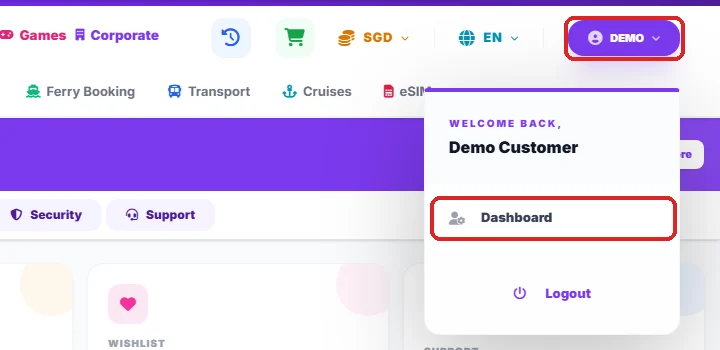
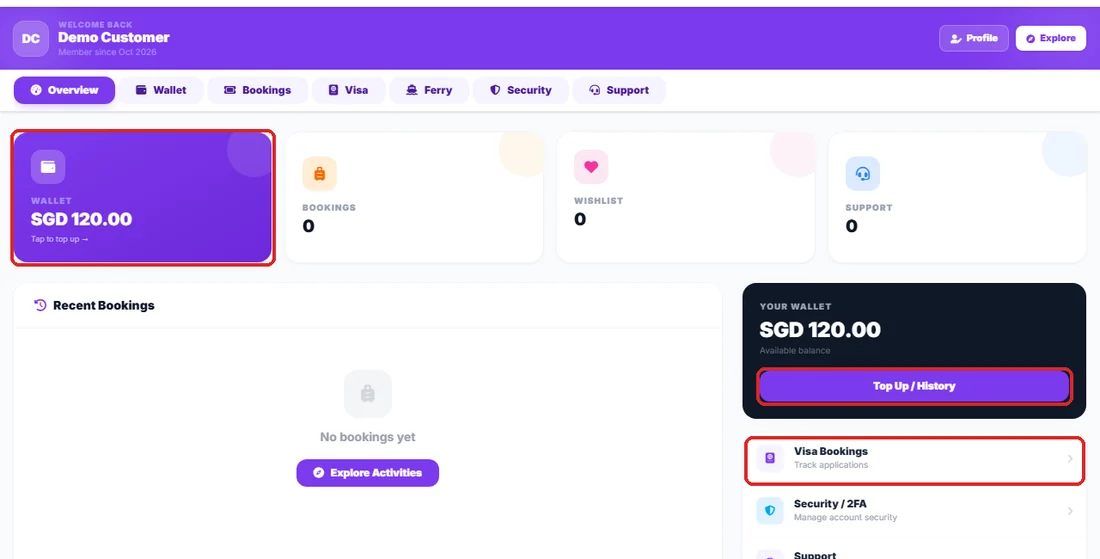
Shortcuts on Overview: the purple Wallet card and the Top Up / History button open your wallet; Visa Bookings opens your visa applications.
2. Top up your wallet
Your wallet balance can be used to pay for bookings on HolidaySG. Top-ups are in Singapore dollars (SGD), from SGD 5.00.
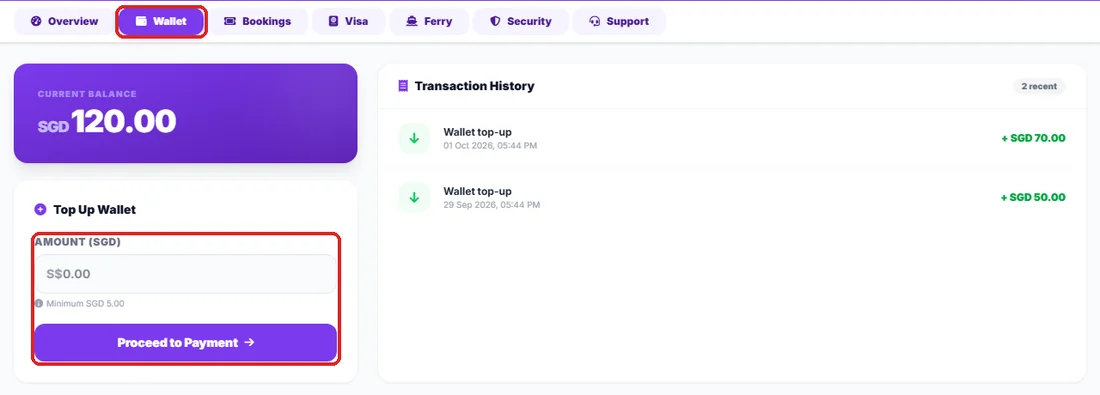
- Open Dashboard → Wallet.
- Under Current Balance, type the amount in Amount (SGD) — for example 50.
- Under Pay with, choose card with 3-D Secure (5% card processing fee), PayNow, WeChat Pay (5% payment fee), UPI QR or ShopeePay; or DuitNow or Touch 'n Go, both charged in Malaysian ringgit (MYR) at today's rate, including the 2.5% currency conversion fee, then click Proceed to Payment. Cards open Stripe’s secure page with your bank’s 3-D Secure check; the other methods open HitPay’s secure page. The exact amount, including any fee, is shown before you pay.
- After paying you return to your Wallet. Your new balance and the payment appear in your transaction history.
If you see “Payment received, but the amount needs a quick check by our team”, your money is safe — please do not pay again. We confirm it and update your wallet shortly. If your balance is shown in another currency, that is only for display; your wallet is kept in SGD.
3. Apply for a visa
- Log in, then click Visa in the top menu (or Dashboard → Visa → Browse Visas).
- Find your destination and open the visa you need. Check the price, processing time and the documents required on that page.
- Click Apply now.
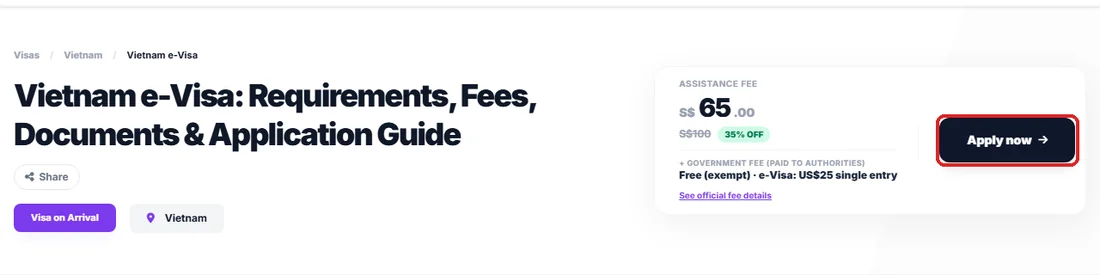
On the visa page, click Apply now. - On Pay & Book, check the order summary and set the Number of applicants. The total updates automatically (price per applicant × applicants).
- Click Pay and complete the secure payment.
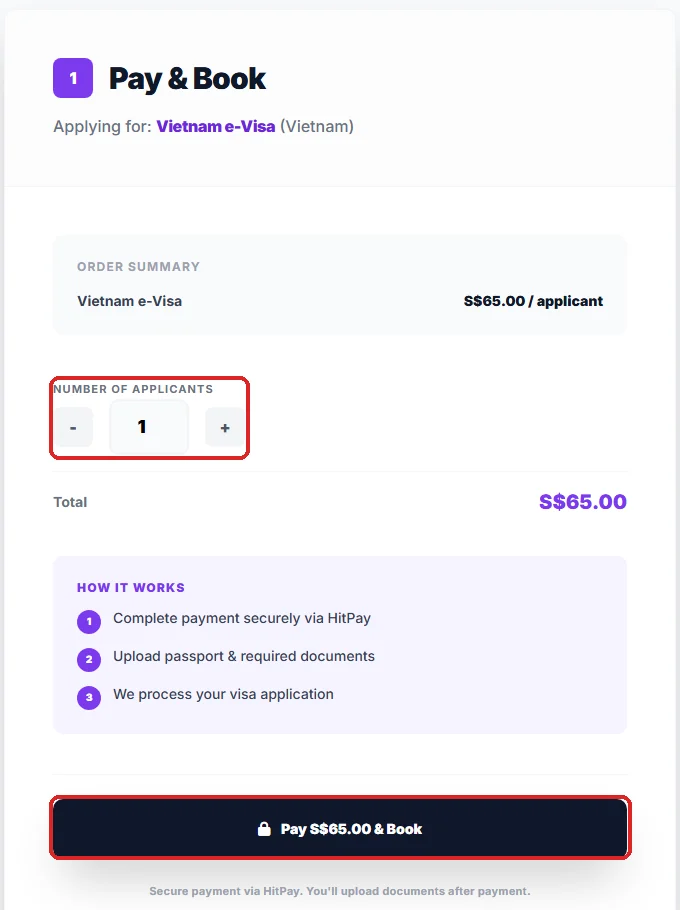
Pay & Book: set the number of applicants, then pay. - Right after payment you see “Payment successful! Please upload your documents”. Enter your passport number and upload at least your passport bio page, passport last page and a recent passport-size photo. You can add the rest later.
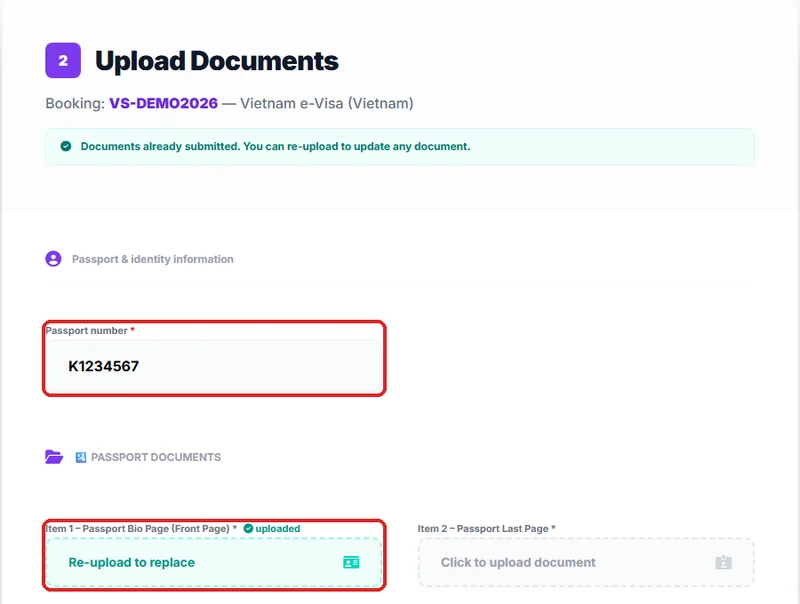
After payment: enter your passport number and upload your passport pages. - Track your application any time on Dashboard → Visa: status goes from paid to processed (or rejected), and your documents folder is right there.
Singapore visa: HolidaySG provides the tourist visa for up to 5 days; a hotel booking and attraction booking are compulsory, and the visa assistance fee is non-refundable.
4. Your documents folder
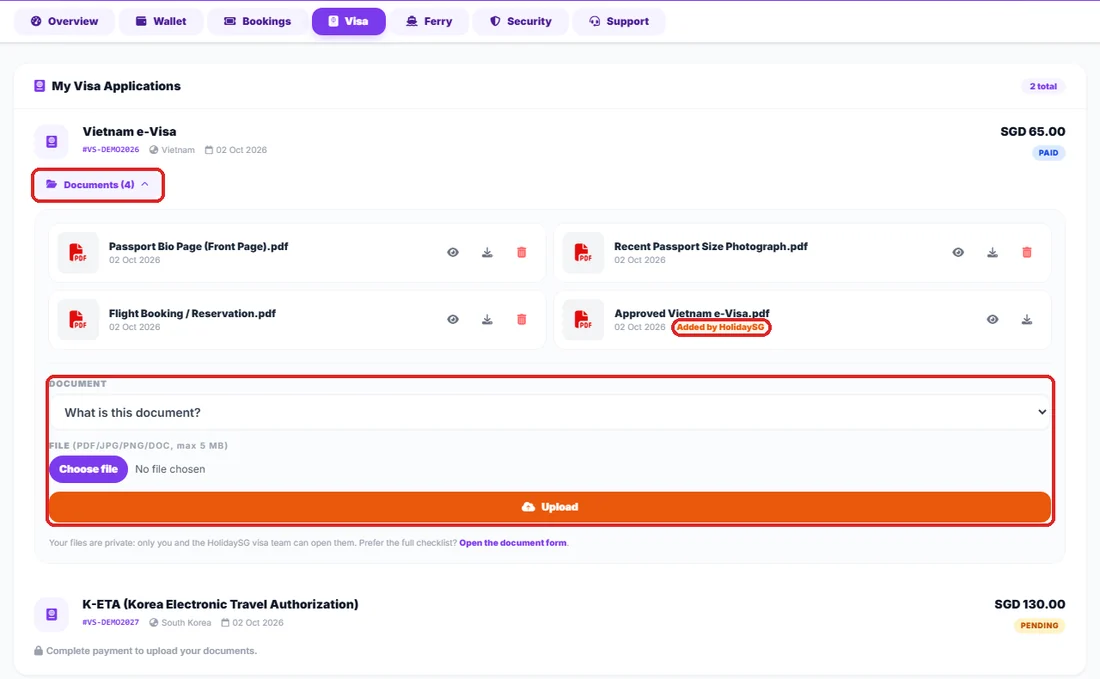
Every paid visa booking has its own private Documents folder. Only you and the HolidaySG visa team can open your files.
- Go to Dashboard → Visa. Under your booking, click Documents (it opens by itself if nothing is uploaded yet).
- In Document, choose what the file is — for example Passport Bio Page, Recent Passport Size Photograph or Personal Bank Statement. For anything else, choose Other files (up to 5).
- Choose your file and click Upload.
- Your files are listed with an eye button (open) and a download button.
| Good to know | Details |
|---|---|
| File types | PDF, JPG, PNG, WEBP, DOC, DOCX |
| File size | Up to 5 MB per file; up to 5 files at once with “Other files” |
| Replace a document | Choose the same document type again — it is marked “(replace)”. The new file replaces the old one. |
| Remove a file | Use the bin icon on files you uploaded, until your application is processed. |
| Files from HolidaySG | Files we add for you — such as your issued e-visa — show an orange Added by HolidaySG badge. Open or download them from the same folder. |
| Full checklist | The Open the document form link under the folder shows every document type on one page. |
5. Questions
I don’t see a documents folder.
The folder belongs to a visa booking. Apply for a visa first (section 3); after payment the folder appears under that booking on Dashboard → Visa.
It says “Complete payment to upload your documents”.
Your booking is not paid yet. Complete the payment, or contact us if you have already paid.
My file is too large.
Each file can be up to 5 MB. Take the photo or scan at a lower quality, or upload the pages as separate files.
I can’t remove a file.
Files added by HolidaySG, and files on an application that is already processed, can only be changed by our team — just contact us.
Are my documents safe?
Yes. Your files are stored privately, never on a public link. Only you (when logged in) and the HolidaySG visa team can open them.
I need help.
Open Dashboard → Support to create a ticket, chat with us using the chat button at the bottom right, or visit our Help Center.
Trending Now
Explore Popular Activities
Book top-rated attractions, tours, and experiences at the best prices
Art, Waves, and Relaxation Full Day Escape to Borneo Summer Bay Tour in Kota Kinabalu
(Free eSIM) Full day Pattaya beach with Halal Set Lunch and rooftop sunset
Phuket Local Treats Tour (included roundtrip transfer in Phuket Island)
Best ATV Quad Adventure with Ubud Highlight Tours
Coron Island Hopping Experience: Via Private Speedboat
Mooloolaba Sunset Seafood Cruise
Windjana Gorge and Tunnel Creek Tour
Athens: Acropolis, Parthenon & Acropolis Museum Guided Tour
Google reviews
5.0 ★★★★★
Based on 129 reviews of HolidaySG on Google
★★★★★
I booked all my tickets on this Singapore website. The process was smooth and efficient I’m very satisfied and would definitely use it again
★★★★★
Tickets are issued very fast. Price is also reasonable. Very satisfied purchase!
★★★★★
Fantastic experience with Holiday SG , i have planned 5 days Singapore for my daughters from India. The whole package includes Hotel Booking,Transport, Sightseeing, VISA...
★★★★★
Had an amazing 3 Days Malaysia Tour with HolidaySG! Everything was perfectly organized from hotel pickup to sightseeing. Our itinerary included Day 1: Kuala Lumpur City T...
More from HolidaySG
Things to do worldwide
Attractions, tours and experiences in destinations around the world.
HolidaySG eSIM plans
Mobile data for your trip: install a HolidaySG eSIM on your phone before you travel, no SIM card swap needed. Choose your destination on the HolidaySG eSIM page; eSIM plans are bought there, separately from tickets.
Need a flight reservation for your visa?
Applying for a visa? Embassies often ask for a flight itinerary. A flight reservation is not an issued ticket.
Hotels worldwide
Compare hotels in popular destinations and check room rates for your dates on HolidaySG.
Free travel tools
Trip cost calculators and free online tools to plan your holiday.
Work with HolidaySG
Travel agents, suppliers and developers: join our partner programmes or connect through the HolidaySG API.